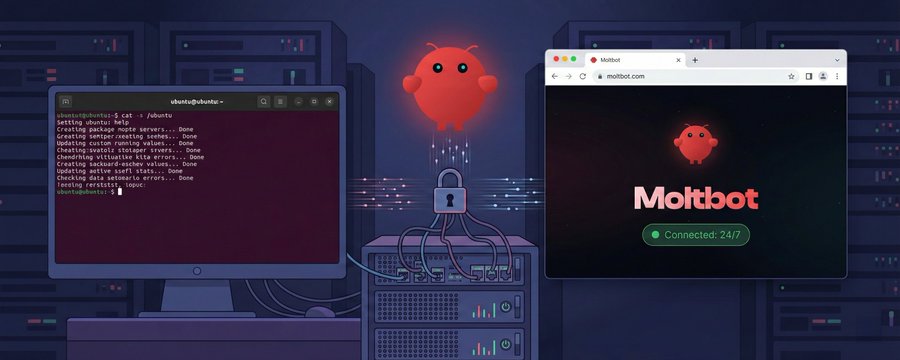
If you’ve ever tried running browser automation on a VPS, you’ve probably hit the same wall I did:
No display.
No GUI.
And yet… you still need to log in manually at least once.
CAPTCHAs, QR codes, 2FA — none of these play nicely with fully headless automation. After some trial and error, I landed on a setup that’s surprisingly clean: using Chrome DevTools Protocol (CDP) to “remote-control” a VPS browser from my local machine.
Here’s how it works in practice.
The Environment I’m Working With
Just to set expectations, this is the exact setup I’m using:
- Ubuntu-based VPS
- No graphical interface at all
- Moltbot already installed
Installation is straightforward:
curl -fsSL https://molt.bot/install.sh | bash
Nothing fancy here — the interesting part comes after.
The Core Idea (What Finally Clicked)
Instead of trying to display Chrome on the VPS, I let Chrome run headlessly on the server and expose it via CDP.
Then, from my local machine, I attach DevTools to that remote Chrome instance. My local browser becomes the “screen and keyboard,” but all cookies, storage, and session data are written directly to the VPS disk.
Once you realize this, the whole thing feels obvious in hindsight.
My Browser Configuration
This is the relevant part of my Moltbot config:
"browser": {
  "enabled": true,
  "controlUrl": "http://127.0.0.1:18791",
  "executablePath": "/usr/bin/google-chrome-stable",
  "headless": true,
  "noSandbox": true,
  "defaultProfile": "clawd",
  "profiles": {
    "clawd": {
      "cdpPort": 18800,
      "color": "#FF4500"
    }
  }
}
The key thing here is the profile. That’s where all login state ends up living.
How I Actually Log In (Step by Step)
1. Make Sure Chrome Is Listening
On the VPS, I first check whether the CDP port is active:
ss -ltnp | grep 18800
If nothing shows up, a simple restart usually fixes it:
moltbot restart
2. Forward the Port to My Local Machine
Next, I open an SSH tunnel:
ssh -L 18800:127.0.0.1:18800 root@SERVER_IP
This terminal stays open. If you close it, everything breaks.
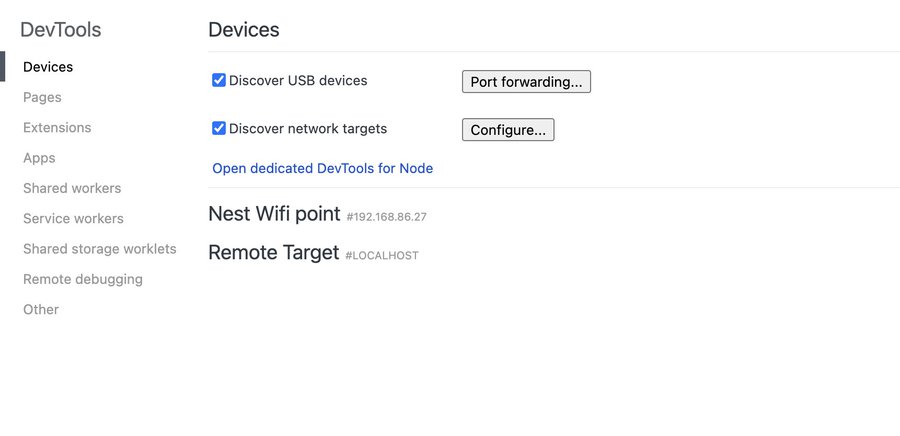
3. Attach from My Local Browser
On my local machine:
- Open Chrome
- Go to
chrome://inspect - Enable Discover network targets
- Under Configure, add:
localhost:18800
A remote page should appear almost immediately.
4. Log In Like a Normal Human
I click inspect, and a DevTools window pops up.
From here, I just log in normally — password, QR code, CAPTCHA, whatever the site requires.
That’s it. No hacks, no weird workarounds.
One caveat: some high-security sites (Google in particular) may still block logins. That’s not a Moltbot issue — it’s just modern anti-bot paranoia.
Why This Actually Sticks
This is the part that matters.
All cookies and LocalStorage data generated during login are saved inside the browser profile directory on the VPS.
As long as:
- you don’t change
defaultProfile, and - you don’t wipe the profile directory,
Moltbot will keep reusing that authenticated session in future runs.
Log in once. Automate forever.
Things That Broke (So You Don’t Have To)
A few gotchas I ran into:
-
Nothing shows up in
chrome://inspect
→ The SSH tunnel is probably dead, or the ports don’t match. -
The page renders weirdly or not at all
→ Make sure you’re using Chrome or Edge. Firefox won’t work here. -
Suddenly logged out
→ Check whether the config was regenerated or the profile directory got touched.
Most issues come down to either ports or profiles. Once those are stable, this setup is rock-solid.
Final Thoughts
This approach completely changed how I handle “manual login” on headless servers.
No VNC.
No fake displays.
No screenshots guessing where to click.
Just a clean DevTools connection and a browser that remembers who it is.
If you’re running Moltbot on a VPS and need reliable login persistence, this is by far the least painful solution I’ve found.